


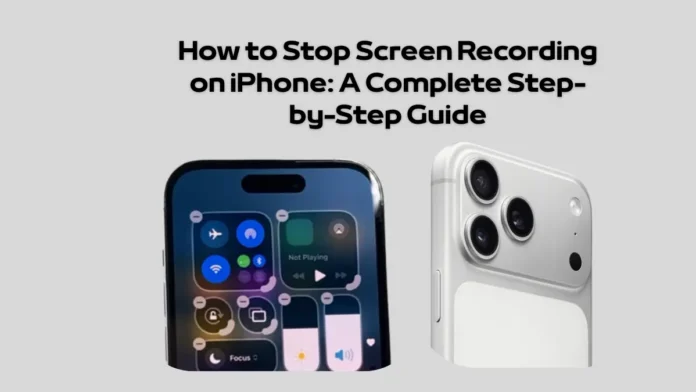
Learning How to Stop Screen Recording on iPhone is a fundamental technical skill for every modern iOS user looking to capture online meetings, save system tutorials, or record high-definition mobile gameplay. While triggering the video capture framework is incredibly simple, many consumers find themselves confused or experience localized UI lag when trying to terminate the ongoing video loop. Failing to close the capture process properly can rapidly drain your lithium cells and bloat your local device storage with massive, multi-gigabyte video files. Dropping alongside the extreme hardware and software enhancements analyzed in our recent IPhone 18 Pro Max Camera Leak news coverage, this comprehensive tutorial breaks down every official method to instantly halt and save your media captures.
Method 1: The Quick Tap Fix via the Status Bar or Dynamic Island
The fastest and most efficient way when figuring out How to Stop Screen Recording on iPhone is utilizing the dynamic native hardware indicators built into your screen assembly. Depending on your specific hardware configuration, you can exploit these rapid execution steps:
- For iPhones with Dynamic Island (iPhone 14 Pro and Newer): Look at the top pill-shaped cutout. You will see a small red recording indicator next to a clock timer. Tap directly on the Dynamic Island to expand the tracking banner, then click the round, red physical “Stop” toggle button.
- For iPhones with Traditional Notches (iPhone X through iPhone 14 Base): Look at the upper left-hand corner of your status grid. The clock interface will be heavily blanketed by a glowing red pill overlay. Tap directly on this Red Status Bar, and a system prompt will immediately pop up reading, “Screen Recording – Stop screen recording?”. Click “Stop” to execute the directive.
Read Also:
Xiaomi 17 Max vs. Samsung Galaxy S26 Ultra: The Ultimate 2026 Heavyweight Showdown
Method 2: The Control Center Route and Troubleshooting System Crashes
If your primary status elements become unresponsive due to intense background application stress, your secondary approach for How to Stop Screen Recording on iPhone relies on the iOS Control Center interface. Simply swipe down from the upper right-hand corner of your glass display panel to pull up your main system configuration grid. Locate the dedicated Screen Recording Icon—represented visually by a glowing, blinking red circular target dot inside a ring mesh. Tap this icon once; the red highlight will instantly turn white, confirming that the capture pipeline is safely closed.
If you are recording high-fidelity mobile assets, such as competitive matches matching the processing limits of our HMD Vibe 2 5G Launches With Massive Battery, 120Hz Display, and AI Features review or extreme framerates, your system might occasionally freeze. If the UI completely locks up and refuses to close the video feed, rapidly press and release the Volume Up Button, press and release the Volume Down Button, and then hold the physical Power Button until the Apple logo flashes to force-restart your phone, which instantly terminates and recovers the core partition video file.
Checking Video Storage and Managing Apple iCloud Memory Allocation
Once you master How to Stop Screen Recording on iPhone, the iOS framework automatically compresses the recorded H.264 or HEVC video stream and fires a system notification reading, “Screen Recording video saved to Photos”. Tap this toast alert to instantly jump into your media library to trim, edit, or share your content.
If you are capturing prolonged technical workflows, like developers configuring remote servers using our Alibaba Cloud network guides or creating app monetization assets, these raw video files will quickly deplete your local memory. To prevent device slow-downs, go to your iOS Settings, tap Photos, and verify that your cloud backup pipelines are active, or manually offload these large recordings to external storage pools, keeping your internal operating speed as optimized as the micro-processing units tracked in our global Hardware Scaling reports.
Summary: Uncompromising Control Over iOS Media Capture
By utilizing either the Dynamic Island tap, the red status bar, or the Control Center grid, ending an active video capture is a flawless, two-second execution. Keeping these steps in mind ensures your phone stays responsive, your storage stays clean, and your captured footage is safely exported every single time.
Frequently Asked Questions (FAQ)
- Why did my iPhone screen recording fail to save to the Photos app?
This error typically triggers if your device runs completely out of local storage space or if you try to record copy-protected media inside apps like Netflix or Disney+. - Does stopping a screen recording alert other apps like Snapchat?
While iOS saves the file to your device normally, certain secure communication applications integrate custom tracking scripts that will automatically notify the other user if you record a private chat session. - Can I stop a screen recording on an iPhone by locking the device screen?
Yes! Pressing the physical Power/Sleep button to lock your screen automatically terminates the ongoing recording process and saves the captured file to your library.