






















How to stop screen recording on iPhone is a common question among iPhone users who use Apple’s built-in screen recording feature to capture tutorials, gameplay, video calls, app demonstrations, or troubleshooting sessions. While starting a screen recording is straightforward, many users are unsure of the fastest way to stop it, save the video, and access the recording afterward.
Whether you’re using the latest iPhone model or an older device running iOS, this guide explains everything you need to know about stopping screen recordings, locating saved videos, and resolving common recording issues.
How to Stop Screen Recording on iPhone
The easiest way to stop a screen recording on an iPhone is by using the recording indicator displayed at the top of the screen.
Follow these steps:
- Locate the red recording indicator at the top of your screen.
- Tap the red status bar or red recording icon.
- A confirmation message will appear.
- Select Stop.
- The recording will automatically save to the Photos app.
Once completed, a notification will confirm that your screen recording has been saved successfully.
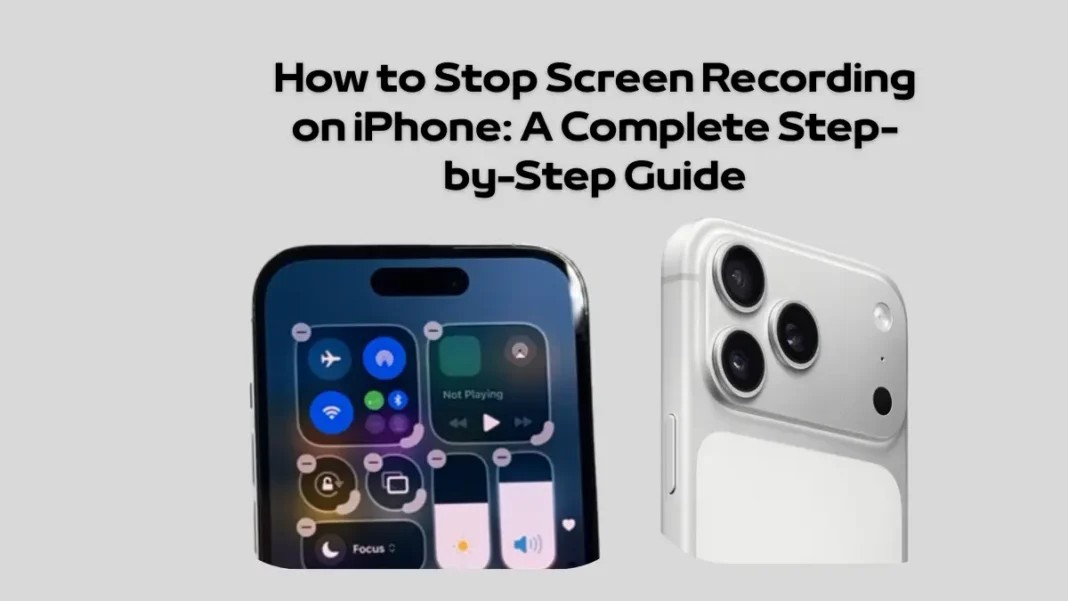
Stop Screen Recording from the Control Center
Another simple method involves using the Control Center.
Steps:
- Swipe down from the top-right corner of the screen on Face ID models.
- Swipe up from the bottom on older iPhones with a Home button.
- Open the Control Center.
- Tap the Screen Recording button.
- The recording will immediately stop.
This method is useful when you are actively using an app and prefer not to interact with the status bar.
Read Also:
Xiaomi 17 Max Review: 8000mAh Battery and 200MP Camera Beast
Claude 4.7 Opus Guide: Specs, Pricing, and Coding Benchmarks
Where Do Screen Recordings Go on iPhone?
After learning how to stop screen recording on iPhone, many users ask where the video is stored.
All screen recordings are automatically saved in:
Photos App → Recents Album
You can also find them by:
- Opening Photos
- Selecting Media Types
- Tapping Screen Recordings
Apple automatically organizes screen recordings into a dedicated category for easier access.
How to Enable Screen Recording on iPhone
If you do not see the Screen Recording button, you may need to enable it first.
To Add Screen Recording:
- Open Settings.
- Tap Control Center.
- Scroll down to Screen Recording.
- Tap the green plus (+) icon.
The feature will now appear in the Control Center for quick access.
How to Stop Screen Recording with Siri
Apple’s virtual assistant can help manage screen recording tasks.
You can simply say:
- “Hey Siri, stop screen recording.”
Siri will immediately end the recording and save the file to your Photos app.
This option is particularly useful if your hands are occupied or if you are recording a tutorial.
Why Can’t I Stop Screen Recording on iPhone?
Occasionally, users experience issues when trying to stop a recording.
Common causes include:
Software Glitches
Temporary iOS bugs may cause the recording controls to become unresponsive.
Frozen Applications
Some apps may freeze while recording, preventing normal interaction.
Low Storage Space
Insufficient storage can interrupt recording functionality.
System Performance Issues
Background processes may occasionally affect screen recording controls.
How to Fix Screen Recording Problems
If you are unable to stop screen recording on iPhone normally, try the following solutions:
Restart Your iPhone
A quick restart often resolves temporary software issues.
Update iOS
Install the latest iOS version to fix bugs and improve system stability.
Check Available Storage
Go to:
Settings → General → iPhone Storage
Ensure enough space is available for saving recordings.
Force Restart Your Device
If the phone becomes completely unresponsive, perform a force restart according to your iPhone model.
Can You Pause a Screen Recording on iPhone?
Unlike some third-party recording applications, Apple’s built-in screen recorder does not currently support pausing.
You can only:
- Start recording
- Stop recording
- Start a new recording
If you need pause functionality, you may need to use specialized screen recording apps available through the App Store.
Tips for Better Screen Recordings
To improve recording quality:
Enable Do Not Disturb
Prevent notifications from appearing during recording.
Clean Up Your Home Screen
Remove unnecessary clutter before recording tutorials.
Turn On Microphone Recording
If narration is required:
- Open Control Center.
- Press and hold the Screen Recording button.
- Enable Microphone.
Ensure Sufficient Battery Life
Long recordings can consume battery power quickly.
Screen Recording Privacy Considerations
When using screen recording, be mindful of sensitive information that may appear on screen, including:
- Passwords
- Banking information
- Personal messages
- Email content
- Private photos
Always review recordings before sharing them publicly.
Summary: How to Stop Screen Recording on iPhone
Understanding how to stop screen recording on iPhone is simple once you know where the controls are located. Users can stop recordings by tapping the red status indicator, using the Control Center, or even asking Siri for assistance. Once stopped, recordings are automatically saved to the Photos app, making them easy to edit, share, or archive.
Whether you create tutorials, record gameplay, capture app demonstrations, or save troubleshooting sessions, mastering iPhone screen recording features can help you work more efficiently and get the most out of your device.
Frequently Asked Questions
How do I stop screen recording on iPhone quickly?
Tap the red recording indicator at the top of the screen and select Stop.
Where are iPhone screen recordings saved?
Screen recordings are automatically saved in the Photos app.
Can Siri stop screen recording?
Yes. You can say, “Hey Siri, stop screen recording.”
Why is my screen recording button missing?
You may need to add Screen Recording through Settings → Control Center.
Does stopping screen recording automatically save the video?
Yes. Once stopped, the recording is automatically saved to your Photos library.
Discover more from Tech News Radar
Subscribe to get the latest posts sent to your email.