
























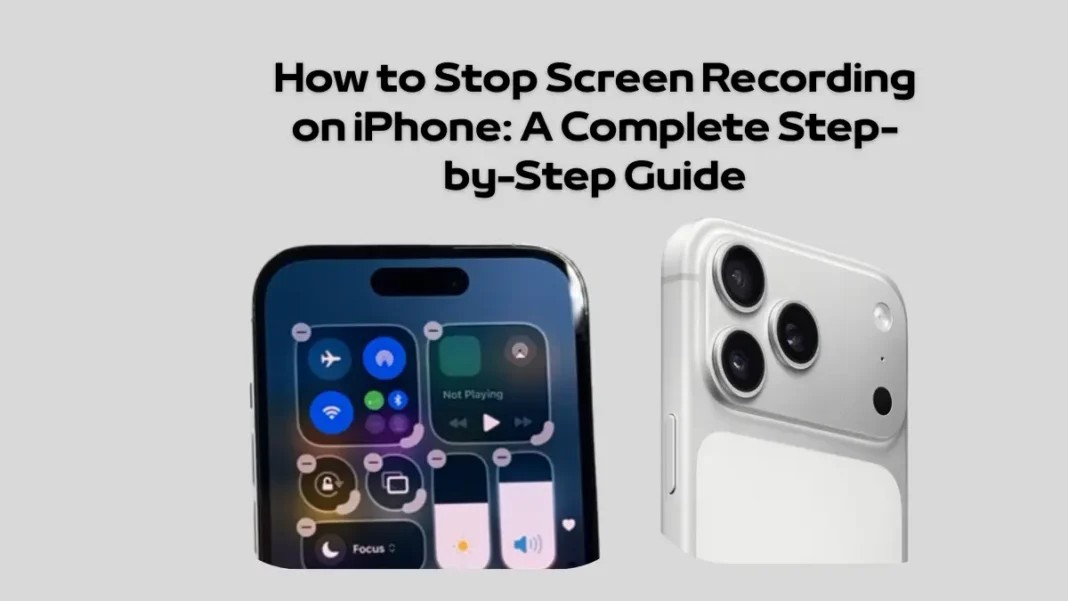
The built-in screen recording feature on iOS is an incredibly powerful tool for capturing tutorials, saving video clips, or sharing gameplay. However, once you are finished capturing your display, knowing how to stop screen recording on iPhone quickly and efficiently is essential to avoid saving unnecessary footage and wasting your device’s storage space. Depending on your specific iPhone model and iOS version, Apple provides multiple straightforward methods to end your recording session instantly.
Method 1: Using the Status Bar or Dynamic Island
The fastest and most common way to stop an active screen recording on modern iPhones running the latest software is utilizing the top visual indicators:
- For iPhones with Dynamic Island (iPhone 14 Pro and Newer): While recording, you will see a red recording icon inside the Dynamic Island at the top of your screen. Simply tap and hold the Dynamic Island to expand the widget, then tap the square Stop button.
- For iPhones with a Notch or Status Bar (iPhone 13 and Older): Look at the top-left corner of your display, where the digital clock is located. The background of the time will be highlighted in bright red. Tap this red time bubble, and a confirmation pop-up will appear on your screen asking, “Stop Screen Recording?”. Tap Stop to confirm.
Method 2: Ending the Session via the Control Center
If your top status bar indicator is hidden or unresponsive due to an open full-screen application or game, you can easily end the process through the iOS Control Center system menu:
- Open the Control Center: Swipe down from the top-right corner of your iPhone screen (or swipe up from the bottom edge of the screen if you are using an iPhone with a physical Home button like the iPhone SE).
- Locate the Screen Recording Icon: Find the nested circular Screen Recording toggle widget, which will be flashing bright red to indicate that an active capture session is currently running.
- Stop the Recording: Tap the flashing red icon once. The button will immediately return to its standard white or gray appearance, signaling that the screen capture has officially ended.
Read Also:
Xiaomi 17 Max Review: 8000mAh Battery and 200MP Camera Beast
Claude 4.7 Opus Guide: Specs, Pricing, and Coding Benchmarks
Where to Find and Edit Your Saved Screen Recordings
Once you successfully stop the display capture using any of the step-by-step methods outlined above, a system banner notification will briefly slide down from the top of your user interface stating, “Screen Recording video saved to Photos”.
To view, trim, or share your newly created media file, simply open the default Photos app, navigate to the Library tab, or scroll down to the Media Types section under the Albums menu and select Videos. From there, you can utilize iOS’s native editing tools to cut out the beginning or ending segments of the clip where the Control Center or Dynamic Island adjustments were made.
For more practical iOS troubleshooting tutorials, next-generation device reviews, and comprehensive smartphone ecosystem updates, make sure to consistently follow our digital network.
Discover more from Tech News Radar
Subscribe to get the latest posts sent to your email.